MX gateway and relay server integration for MailEnable environments

Pitbull MX gateway for MailEnable (Commercial, Windows Server) mail servers: inbound filtering, quarantine and outbound relay. Outbound traffic is routed through Pitbull relay via MailEnable Smart Host settings.

MailEnable · Relay MX + Relay Server
Inbound MX ROUTED
Relay AKTİF
Filter RSPAMD
Abuse OBSERVE
MailEnable Relay MX Gateway Rspamd NOC
Windows Server
Platform
Commercial
License
MX+Relay
Gateway model
KVKK
Local processing

Integration challenges

Pitbull solves mail security on this platform with the MX gateway model.

Limited native filtering

MailEnable default spam protection is insufficient against advanced phishing and BEC attacks.

Outbound blind spot

Without relay configuration, outbound spam and abuse detection is delayed; IP reputation drops.

Missing central visibility

Hard to monitor traffic, quarantine and reject reasons from one point.

Scattered policy

Managing SPF/DKIM/DMARC and quarantine policies per server increases error risk.

Pitbull integration with MailEnable

In environments using MailEnable, Pitbull integration works on two channels:

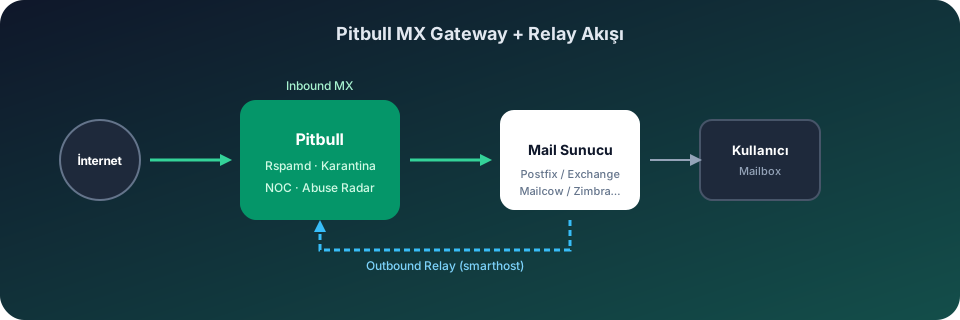
  • Inbound: DNS MX records point to the Pitbull gateway; Rspamd-based filtering, quarantine and policy engine secure inbound traffic.
  • Outbound: Outbound traffic is routed through Pitbull relay via MailEnable Smart Host settings.

Relay Server Configuration

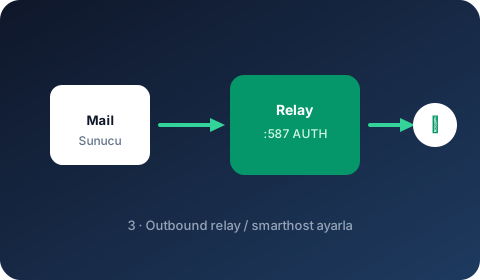
Configure relay server, port 587 and SMTP AUTH credentials under SMTP → Properties → Smart Host in MailEnable Administration Console.

Inbound MX Gateway

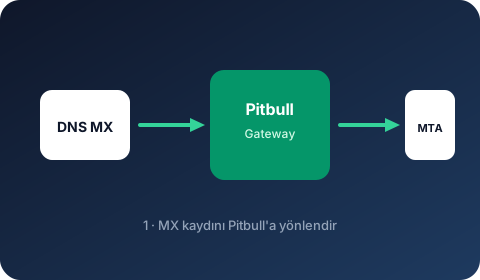
  • Point domain MX records to the Pitbull gateway address (priority 10)
  • Rspamd spam, phishing and malware filtering at the gateway layer
  • Malicious attachment scanning via ClamAV / Avast REST
  • SPF, DKIM and DMARC checks + score breakdown
  • Suspicious messages isolated in quarantine; admin-approved release workflow

Outbound Relay Settings

To route outbound traffic to the Pitbull relay on MailEnable:

MailEnable Administration Console:
SMTP → localhost → Properties → Smart Host
  Smart Host: relay.pitbull.com.tr
  Port: 587
  Requires Authentication: Yes
  Username: smtp-user@domain.com
  Password: ********
  Use SSL/TLS: Yes

This configuration passes outbound traffic through the Pitbull outbound filtering engine. SMTP Abuse Radar, per-tenant rate limits and Emergency Outbound Lockdown are activated.

Authentication

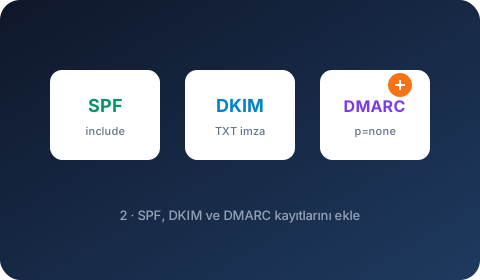
  • Add Pitbull include to SPF
  • Enable DKIM signing from Pitbull panel and publish DNS TXT record
  • Start DMARC at p=none and monitor reports

Operational Visibility

Monitor delivery rates, reject reasons, queue status and GeoIP/ASN distribution on NOC screens. Deliver periodic security summaries to management teams with executive PDF reports.

Smarthost configuration

Outbound relay and MX routing steps

Outbound — Smart Host (MailEnable)

On Windows MailEnable servers:

  1. MailEnable Administration → Servers → localhost → Connectors → SMTP
  2. Properties → Outbound → Smart Host: relay.pitbull.com.tr
  3. Port: 587
  4. Enable Outbound SMTP Authentication; enter Pitbull panel credentials
  5. Check Require TLS

Alternatively, define per-domain smart host rules under Routing → Relay.

Inbound — MX

Point DNS MX to Pitbull gateway instead of MailEnable directly:

@  MX  10  mx.pitbull.com.tr.

MailEnable inbound connector can remain for Pitbull-delivered mail only; with MX priority on the gateway, spam load never hits your server directly.

Illustrated setup guide

Pitbull integration on this platform is completed in 4 visual steps.

Gateway flow diagram
MX Gateway
1

MX Gateway

Point DNS MX to the Pitbull gateway address.

SPF · DKIM · DMARC
2

SPF · DKIM · DMARC

Add authentication DNS records.

Outbound Relay
3

Outbound Relay

Set Pitbull relay as smarthost / relayhost.

NOC Verification
4

NOC Verification

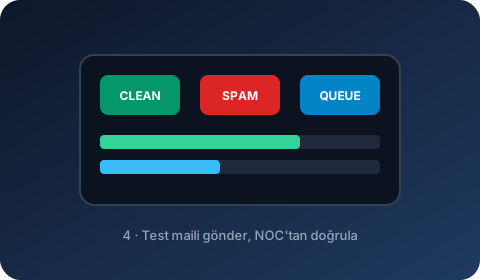
Send a test email and verify in the NOC panel.

Setup steps

  1. 1 Point DNS MX records to the Pitbull gateway address (priority 10).
  2. 2 Add Pitbull include to SPF; generate DKIM TXT from panel and add to DNS.
  3. 3 Set the Pitbull relay address in MailEnable relay/smarthost settings.
  4. 4 Send a test email and verify inbound/outbound traffic in the NOC panel.
  5. 5 Start DMARC at p=none and monitor aggregate reports.